
Compile and Run
In the previous lesson we dissected what makes up a Go programme. By now you’ve typed go run main.go a dozen times and seen the output. But what’s behind that command? Where does the compiled file go? And how do you turn code into a binary — an executable file containing machine instructions that you can simply copy onto a server and run — no Go, no dependencies, no nothing?
In the first lesson we mentioned “compiled language” and “single binary with no dependencies” — time to see what those words mean in practice. Compilation is the translation of your code into the language of the processor: ones and zeroes that the CPU executes directly. The result of that translation is the binary (from the word binary — base-two). Unlike Python, where code is first compiled to bytecode and then executed by a virtual machine (CPython VM), Go compiles straight to native machine instructions — no intermediate layers. That’s where the speed comes from.
Today we pop the bonnet.
For all examples in this lesson we’ll use our trusty main.go:
package main
import "fmt"
func main() {    fmt.Println("Hello, World!")}
Open the terminal in VS Code (Ctrl+`) and make sure you’re in the folder with this file.
go run — The Illusion of an Interpreter
If you’ve come from Python or JavaScript, go run feels familiar: type a command — programme runs. No intermediate files, no faffing about. Feels like Go just executes the text.
But Go is a compiled language. Always. Even when go run pretends to be an interpreter, a full-blown build is happening under the bonnet:
- A temporary directory is created (the path depends on your OS)
- The source code is compiled into a native binary
- The binary is launched as a separate process
- Once the programme finishes, the temporary directory is deleted
That’s why nothing appears in your working folder — everything lives and dies in a temporary directory.
Peeking Under the Bonnet
Want to see what’s going on? Add the -x flag:
go run -x main.goDozens of lines will scroll through the terminal — every command Go executes behind the scenes. You’ll see the path to the temporary directory (WORK=...), compiler invocations, and linking.
If you want to keep the temporary files for inspection, there’s the -work flag:
go run -work main.goWORK=/var/folders/.../go-build3712456890 # path depends on your OSHello, World!The directory won’t be deleted after the programme finishes. You can go in there and find the actual compiled binary.
:::tip Handy trick
go run -work is a great way to prove to yourself that Go really does produce a proper executable, rather than “interpreting” your code.
:::
Passing Arguments
In the previous lesson we wrote a greeter programme with os.Args. Running it looked like this:
go run main.go AliceHello, Alice!Everything after the filename is arguments to your programme. Go sorts out where its own flags end and your data begins. Go flags go before the file, programme arguments go after:
go run -race main.go --port 8080# ^^^^ ^^^^^^^^^^# Go flag your programme's argumentsBy the way, instead of go run main.go you can write go run . — the dot means “the entire package in the current directory”. Whilst you’ve only got one file there’s no difference, but it’s the more idiomatic* approach, and later you’ll see why.
:::caution The dot only works with a Go module
Commands using . (go run ., go build .) require a go.mod file in your project directory. If there isn’t one, Go will throw an error. Create a module with a single command:
go mod init hellohello is the name of your module (can be anything). After this, a go.mod file will appear in the directory. We’ll talk about modules properly in a separate lesson; for now, just know: run go mod init before using . for the first time.
:::
* Idiomatic means “the way the community does it”. Every language has unwritten rules: not just “it works”, but “this is how experienced developers write it”. In the Go world, go run . is idiomatic; go run main.go isn’t. You’ll come across this word often in Go documentation and articles.
Limitations
Since Go 1.24, go run has caching: if the code hasn’t changed, a repeat run grabs the ready-made binary from cache. But there are still plenty of limitations:
- Slower than running the binary directly. Even with caching,
go runchecks whether the build is up to date on every invocation. For large projects the overhead can be significant — in some cases up to 8 times slower than running the compiled binary. - No control over the binary. It sits somewhere in the cache; you can’t hand it to someone or ship it to a server.
os.Executable()returns a path into the temporary directory — if your programme relies on its own path, things will break. - Cache is short-lived. Go aggressively clears cached binaries — roughly after 2 days of non-use. Come morning,
go runmight recompile from scratch. package mainonly. You can’t run a library package — only executable programmes.- Cross-compilation is pointless.
GOOS=linux go run .doesn’t make sense — the binary runs on your machine, not on the target platform. - Not for production. Production is the environment where your programme runs “for real”: serving actual users, running on a server round the clock. The opposite is the development environment, where you write and test code on your own machine.
go runis a development tool, not a deployment method.
Bottom line: go run is for a quick look. For everything else, there’s go build.
go build — Creating a Proper Binary
When you need a file you can send to a colleague, upload to a server, or stick in a Docker container (Docker is a system for packaging and running applications in isolated environments — we’ll get to know it later) — reach for go build.
go build -o myapp ../myappHello, World!A file called myapp has appeared in the directory (on Windows it’d be myapp.exe), about 2 MB or a touch more. It’s a self-contained binary. The target machine doesn’t need Go, doesn’t need libraries, doesn’t need a runtime. Just copy the file and run it.
Output File Name
Without the -o flag, Go picks the name itself:
go build . # Name from go.mod (or the directory name)go build -o server . # Explicitly set a namego build -o bin/app . # You can specify a path tooOn Windows, .exe is added automatically.
:::tip go build without package main
If you run go build . in a directory with a library package (not main), Go will compile the code and check it for errors but won’t create an output file. A handy way to validate code without cluttering the directory — especially in CI.
:::
The -race Flag — Data Race Detector
Imagine two people editing the same document at the same time, unable to see each other. One writes a heading, the other deletes it — the result is unpredictable. In programming this is called a data race — when several parts of a programme simultaneously read and modify the same variable. The outcome depends on who got there first, and each run can produce a different result.
Go can find these situations automatically. Here’s an example — don’t try to parse every line just yet; we’ll cover the go keyword in the concurrency lesson. What matters now is the principle:
package main
import "fmt"
func main() {    count := 0    for i := 0; i < 1000; i++ {        go func() {  // launch 1000 parallel tasks            count++  // all writing to the same variable        }()    }    fmt.Println(count)}
Run without the flag — the programme silently produces an unpredictable result:
go run .0 # or 127, or 999 — different every timeNow with -race:
go run -race main.go==================WARNING: DATA RACERead at 0x00c00011c028 by goroutine 9:  main.main.func1()      /home/user/main.go:9 +0x2e
Previous write at 0x00c00011c028 by goroutine 8:  main.main.func1()      /home/user/main.go:9 +0x44
Goroutine 9 (running) created at:  main.main()      /home/user/main.go:8 +0x4a
Goroutine 8 (finished) created at:  main.main()      /home/user/main.go:8 +0x4a==================... 2 more similar warnings ...651Found 3 data race(s)exit status 66
Go found 3 races and shows precisely: line 9, variable count (address 0x00c00011c028), several parallel tasks writing to it simultaneously. The programme exited with code 66 — a special error code for races. The number 651 instead of the expected 1000 is the result of lost updates, a classic consequence of a data race. Without -race the programme would silently give wrong results — a bug that’s extremely hard to catch by hand.
The -race flag works with go build, go run, and go test. A binary built with it is slower and uses more memory, so you don’t ship it to production. But in tests and during development — it’s standard practice.
Why Does Hello World Weigh 2 Megabytes?
After their first go build, beginners are surprised: a five-line programme — 2 MB? In C the equivalent is 16 KB.
The thing is, a Go binary isn’t just your code. It’s an entire universe:
- Go runtime — the execution environment
- Garbage Collector — automatic memory management
- Goroutine Scheduler — the goroutine scheduler (remember from the first lesson — multitasking out of the box?)
- Symbol table and debug information — for panic traces and debugging
- Parts of the standard library that you imported
A single import "fmt" pulls in reflection, I/O, and string formatting*. All baked in.
- * Reflection — a mechanism that allows a programme to analyse and modify its own structure at runtime: discover variable types, read their values, call functions by name. In formal terms, it’s the ability of a programme to examine its own type system whilst running. In plainer terms — the ability of a programme to “look at itself”. Think about it: you write
fmt.Println(42)and get42. You writefmt.Println("hello")and gethello. You writefmt.Println(3.14)and get3.14. How doesPrintlnknow how to print each of these values when a number and a string are completely different things? Through reflection: at the moment of the call, the function asks the runtime “what was I given — a number? a string? something else?” — and based on the answer, chooses how to display it. Without reflection you’d have to write a separate function for every data type. - * I/O (Input/Output) — everything to do with reading and writing: output to the terminal, reading files, sending data over the network.
fmt.Printlnwrites text to standard output (stdout) — that’s I/O. - * String formatting — turning data into readable text. When you write
fmt.Println("Answer:", 42), Go converts the number42into the string"42"and glues it to"Answer:".
This is why in the first lesson we said “single binary with no dependencies” — now you see what that means. Go puts everything it needs right into the file.
Reducing the Size
Why bother making the binary smaller? A smaller binary means faster downloads to servers (especially if you’ve got dozens of them), less space in the Docker image, faster container starts. For Hello World the difference is negligible, but when a project grows to 20–50 MB, shaving off 25–30% starts to matter.
# Standard buildgo build -o app .# app — ~2 MB
# Without debug information (-s: symbols, -w: DWARF)go build -ldflags="-s -w" -o app .# app — ~1.5 MB
The -s -w flags strip the symbol table and DWARF debug information. In practice that’s minus 25–30% of the size. Panic traces still work — Go keeps its own internal table for error tracking separately.
:::tip Production recipe
go build -ldflags="-s -w" -trimpath -o app .The -trimpath flag additionally strips absolute filesystem paths from the binary. A bonus for security and build reproducibility.
:::
Embedding the Version
Picture this: you’ve shipped a binary to a server. A month later something breaks. Which version of the code is running there — you can’t remember. You’ve rebuilt ten times since then. If the binary can answer “I’m version 1.0.0” on its own — the problem is solved in a second: run it with --version, compare with the current release, work out whether you need to update.
That’s exactly why the version is baked into the binary at build time:
package main
import "fmt"
var version = "dev"
func main() {    fmt.Println("Version:", version)}
In the code, version is "dev" — the default value for development. But at build time we swap it out:
go build -ldflags="-X main.version=1.0.0" -o app ../appVersion: 1.0.0The -X flag replaces the value of a string variable at compile time — no need to change the source code. In CI/CD systems (Continuous Integration / Continuous Delivery — automated building and shipping of code) this is standard practice: they embed the version number, build date, and Git commit hash. Any binary can “introduce itself”.
:::tip From Go 1.24 onwards
Go automatically embeds Git information (commit hash, version tag, a +dirty marker if there are unsaved changes). You can view it with go version -m ./app.
:::
Build Cache — Why the Second Time Is Faster
A cache is a place where results of previous work are stored so you don’t have to redo it. Your browser caches images from websites so it doesn’t download them again. Go does the same with compilation: it saves already-compiled packages, and on the next build only recompiles those that changed.
go build -o app . # First time: ~2 secondsgo build -o app . # Second time: ~0.3 seconds (linking only)To find out where exactly Go keeps the cache on your machine:
go env GOCACHEThe path depends on your OS — it’s different on Linux, macOS, and Windows. If something’s gone wrong and you want to clear the cache — go clean -cache.
:::tip For the experienced: PGO — Profile-Guided Optimisation
Since Go 1.22, Profile-Guided Optimisation has been stable. The idea: you capture a CPU profile from a running application (via pprof), drop the default.pgo file in the project root, and on the next build the compiler uses real data about hot paths for aggressive inlining and optimisation. Performance gain: 2–14% without changing a single line of code. More in the lessons on testing and profiling.
:::
go install — Installing Tools Globally
go build creates a binary in the current folder — wherever you happen to be in the terminal. That’s handy for your project, but what if you want to install someone else’s tool — a linter, formatter, code generator — and use it from anywhere on the system?
That’s what go install is for. It does the same as go build, but places the finished binary not next to you, but in a special folder. In the installation lesson we saw the GOBIN variable in a table — this is it. To find out where exactly Go puts tools on your system:
go env GOPATHBinaries end up in the bin subfolder of that path. If you added that folder to PATH when installing Go, the tools will be available from any directory. If not — now’s the time to do it (details in the installation lesson).
Example — let’s install goimports, a tool for automatically sorting imports:
go install golang.org/x/tools/cmd/goimports@latestThis command downloads the goimports source code from golang.org/x/tools, compiles it, and puts the finished binary in that bin folder. The @latest suffix means “latest version”. The tool is now available globally:
goimports -w main.goThis works from any folder — provided the bin folder is in your PATH. This is exactly how the tools in the editor lesson were installed — gopls, dlv, and other VS Code extensions were installed via go install.
Difference from go build
go build | go install | |
|---|---|---|
| Where the binary goes | Current folder | The bin folder inside GOPATH |
| What for | Your project | Third-party tools |
| Available globally | No | Yes (if bin is in PATH) |
| Typical usage | go build -o server . | go install tool@latest |
:::tip For the experienced: the tool directive in go.mod (Go 1.24)
Previously, to pin a tool’s version (linter, code generator) across a project, developers used a hack — a tools.go file with blank imports. Since Go 1.24, there’s a tool directive right in go.mod:
go get -tool github.com/golangci/golangci-lint/cmd/golangci-lint@latestThis adds a tool line to go.mod, and now any team member runs the tool via go tool golangci-lint run ./... — guaranteed to be the same version as everyone else. No more discrepancies between developers and CI.
:::
When to Use What
go run | go build | go install | |
|---|---|---|---|
| What it does | Compiles → runs → deletes | Compiles → saves | Compiles → puts in GOPATH/bin |
| File remains | ❌ No | ✅ In current folder | ✅ In GOPATH/bin |
| When to use | Development, experiments | Building for server, Docker | Installing CLI tools |
| Caching | Since Go 1.24 | Intermediate files | Intermediate files |
Typical workflow:
go run .— whilst you’re writing and debugginggo build— when you need the final artefactgo install— for tools you use regularly
Cross-Compilation — Building for Any OS
An important point: every binary is built for a specific OS and architecture. A binary built on macOS won’t run on Linux — you’ll get an Exec format error. And vice versa. This isn’t like a Python script that runs the same everywhere there’s an interpreter. A binary contains machine instructions for a specific platform.
If you develop on macOS but your server runs Linux, you need to build the binary specifically for Linux. This is cross-compilation: building on one platform for another. In the first lesson we mentioned “built for Linux on a Mac with a single command” — time to show how.
Remember the code from the installation lesson?
fmt.Printf("OS: %s\n", runtime.GOOS)fmt.Printf("Arch: %s\n", runtime.GOARCH)Back then, runtime.GOOS showed your current OS — and that makes sense, since you were building and running on the same machine. But runtime.GOOS and runtime.GOARCH aren’t “detecting the system at run time”. They’re constants baked into the binary at compile time. By default Go sets them to your OS and architecture, so everything matches. But you can override them with two environment variables — and then the binary will be built for a different platform:
# Build on Mac, run on a Linux serverGOOS=linux GOARCH=amd64 go build -o app-linux .
# For WindowsGOOS=windows GOARCH=amd64 go build -o app.exe .
# For Mac with Apple SiliconGOOS=darwin GOARCH=arm64 go build -o app-mac .
# For Raspberry PiGOOS=linux GOARCH=arm GOARM=7 go build -o app-rpi .
No extra compilers, toolchains, or virtual machines. Go does it all out of the box.
Want to see every supported platform? There are over 45:
go tool dist listaix/ppc64android/amd64darwin/amd64darwin/arm64js/wasmlinux/amd64linux/arm64wasip1/wasmwindows/amd64... and 40+ moreCGO_ENABLED=0 — A Truly Static Binary
We said the Go binary is self-contained — everything it needs is inside. But that’s not quite the full picture. By default, Go sometimes uses C libraries from the operating system — for instance, for DNS resolution (translating domain names into IP addresses) and for looking up system user information. This is called CGO (C-Go) — a bridge between Go and C code.
The problem is that C libraries differ across systems. A binary built with CGO expects a particular C library on the target system. If it’s not there or it’s a different version, the binary crashes with a cryptic error.
To make the binary truly self-contained, with no dependencies on anything on the target system, disable CGO:
CGO_ENABLED=0 GOOS=linux GOARCH=amd64 go build -o app .CGO_ENABLED=0 tells Go: “don’t use C libraries, do everything yourself”. Go will replace system calls with its own pure-Go implementations. The result is a binary that needs nothing but the operating system. No libraries, no dependencies.
:::danger This matters for Docker
The popular Alpine Linux base image uses musl libc instead of the standard glibc. If you build a binary without CGO_ENABLED=0, it’ll crash in Alpine with the baffling error no such file or directory — even though the file is right there. The system can’t find the C library the binary expects. Simple rule: for Docker builds, always set CGO_ENABLED=0.
:::
Under the Bonnet: Why Go Compiles in Seconds
In the first lesson we said that Go was created because its creators were fed up waiting 45 minutes for C++ to compile. Here’s how they solved the problem.
Compilation Stages (On the Back of a Napkin)
When you type go build, here’s what happens:
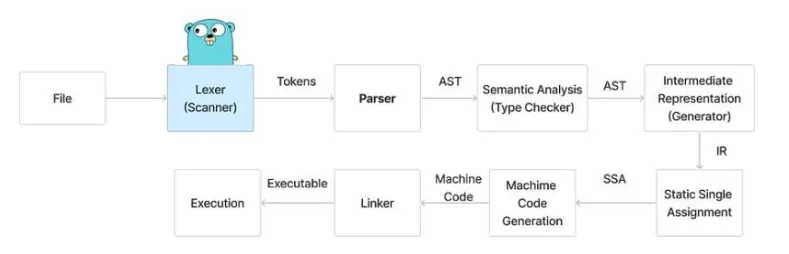
- Lexer (Scanner) — splits the text into tokens: keywords, names, numbers, operators
- Parser — assembles tokens into a tree (AST — Abstract Syntax Tree) reflecting the programme’s structure
- Semantic Analysis (Type Checker) — verifies types: “x is an int, you can’t add it to a string”
- Intermediate Representation — converts the AST into an intermediate representation (IR)
- SSA (Static Single Assignment) — optimises the IR: removes dead code, folds constants
- Machine Code Generation — turns SSA into instructions for the target processor
- Linker — stitches machine code together with the runtime → finished binary
- Execution — the OS loads the binary and runs it
You don’t have to understand every step. The key thing to know is that compilation is a translation: human text → machine instructions. Go does this translation very fast.
:::tip For the experienced: what happens at each stage
SSA (Static Single Assignment) is the key intermediate representation. Each variable is assigned a value exactly once: x = 1; x = x + 2 becomes x₁ = 1; x₂ = x₁ + 2. This simplifies optimisations: dead code elimination, constant folding, removing unnecessary array bounds checks.
Escape analysis — the compiler decides where a variable lives: on the stack (fast, free cleanup) or on the heap (costlier, loads the GC — Garbage Collector, the system that automatically frees unused memory). If a reference to a variable “escapes” beyond the function — heap. Otherwise — stack. To see the compiler’s decisions: go build -gcflags="-m" .
Inlining — the compiler substitutes the body of small functions directly at the call site, eliminating call overhead. Go inlines functions up to a certain “cost” (80 AST nodes). Since Go 1.22, the inliner has become more aggressive. :::
:::tip For the experienced: what happens before main()
When the OS launches a Go binary, your main() is still a long way off:
- OS Loader loads the file into memory, finds the entry point
- Assembly bootstrap (
_rt0_amd64_linuxand friends) saves argc/argv runtime.rt0_goallocates a stack for the system goroutine g0, initialises the heap- Subsystem startup — GC, goroutine scheduler, network poller
init()functions of all imported packages — bottom-up through the dependency treemain.main()— your code, at last
This is why even an empty Go programme is “heavier” than its C equivalent — it carries a full runtime environment with it. :::
Why Faster Than C++ and Rust
The main reason is the dependency model. Rob Pike measured it: when compiling Go code, the compiler reads 40 times less source text than when compiling C++. In C++, every #include <string> re-explains to the compiler what strings are. In Go, package information is stored in compiled form — the compiler reads only direct imports without diving into their dependencies.
Other factors:
- 25 keywords — the parser works in a flash
- No circular imports — the dependency graph can be compiled in parallel
- Unused import = error — the compiler doesn’t waste time on dead code
- No C++-style templates — no code bloat during instantiation
For scale: the Istio project (a platform for managing microservices, ~350,000 lines of Go) compiles from scratch in 33 seconds on a beefy machine. With a warm cache — under a second.
:::tip For the curious
go build -x shows every command the toolchain executes: compiling each package, generating configs, linking. Dozens of output lines — and all of it in a couple of seconds.
:::
Practical Scenarios
Docker Multi-Stage Build
The standard way to ship a Go service to a server — a multi-stage Docker build:
# Stage 1: build the binaryFROM golang:1.25 AS builderWORKDIR /appCOPY go.mod go.sum ./   # go.sum — a file with dependency checksumsRUN go mod downloadCOPY . .RUN CGO_ENABLED=0 GOOS=linux go build -ldflags="-s -w" -trimpath -o server .
# Stage 2: minimal imageFROM scratchCOPY --from=builder /app/server /serverENTRYPOINT ["/server"]
The scratch image is completely empty. No bash, no curl, no libc. Just your binary. Final image: 3–5 MB instead of 700 MB+ with the full SDK (Software Development Kit — a set of development tools). This is possible precisely because the Go binary is self-contained.
Makefile
A Makefile is a file containing a set of command recipes. Instead of typing out a long build command with a dozen flags every time, you describe it once in a Makefile and then call it with a short make build. The make utility comes pre-installed on Linux and macOS; for Windows it can be installed separately.
For larger projects, wrapping commands in a Makefile is handy:
APP_NAME = myapp.PHONY: run build test clean cross
run:  go run .build:  go build -ldflags="-s -w" -trimpath -o $(APP_NAME) .test:  go test -race ./...clean:  rm -f $(APP_NAME) $(APP_NAME)-*cross:  CGO_ENABLED=0 GOOS=linux   GOARCH=amd64 go build -ldflags="-s -w" -o $(APP_NAME)-linux .  CGO_ENABLED=0 GOOS=darwin  GOARCH=arm64 go build -ldflags="-s -w" -o $(APP_NAME)-mac .  CGO_ENABLED=0 GOOS=windows GOARCH=amd64 go build -ldflags="-s -w" -o $(APP_NAME).exe .
Now it’s make build instead of a long command with flags. make cross — build for three OSes in one go.
:::tip For the experienced: GoReleaser
When your project grows to the point of public releases — cross-compilation, archives, changelogs, publishing to GitHub/GitLab, Homebrew and Scoop configs — doing it by hand is a nightmare. GoReleaser automates the entire cycle. One .goreleaser.yaml file, one command — and a release for dozens of platforms is ready. It’s used by Kubernetes, Docker, GitHub CLI, and thousands of open-source projects.
:::
Common Beginner Blunders
1. “undefined” when running go run main.go
As a project grows, code naturally splits into multiple files — say, main.go and math.go in the same main package. And here’s the catch.
When you explicitly list files — go run main.go — Go considers only the listed files part of your package. Other .go files in the same directory are invisible, as if they don’t exist:
go run main.go./main.go:10:2: undefined: Add   # the Add function from math.go — "doesn't exist"
go run .                        # ✅ all package files included
It’s important not to confuse two things:
- Neighbouring files of the same package (e.g.
math.gowithpackage mainin the same folder) — withgo run main.go, they aren’t picked up. This is the problem. - Imported packages (via
import) — are picked up just fine. If you haveimport "myproject/utils", theutilspackage will compile because it’s resolved through the module system, not by scanning neighbouring files.
go run . and go build . include all .go files in the directory (except _test.go). So get into the habit of go run . — you won’t run into this problem.
2. “cannot run non-main package”
go run .go run: cannot run non-main packageYou forgot to write package main or there’s no main() function. Remember from the previous lesson: only package main + func main() creates an executable programme.
3. Binary doesn’t run on another OS
Built on Mac, copied to a Linux server:
./myappbash: ./myapp: cannot execute binary file: Exec format errorThat’s a macOS binary, and you’re trying to run it on Linux. You need cross-compilation:
GOOS=linux GOARCH=amd64 go build -o myapp .4. “permission denied” (Linux/macOS)
./myappbash: ./myapp: Permission deniedNo execute permission. go build sets it automatically, but when copying via an archive or over the network, the execute bit can get lost. On Windows this isn’t a problem — it works differently there.
chmod +x myapp5. Mysterious “no such file or directory” in Docker
exec /server: no such file or directoryThe file’s right there, but the system can’t find the dynamic loader glibc. You built without CGO_ENABLED=0 and you’re running in Alpine with musl.
# Correct build for Docker:CGO_ENABLED=0 go build -o server .Full Example: From Code to Binary
Let’s take the greeter programme from the previous lesson and walk through the complete cycle:
package main
import (    "fmt"    "os"    "strings")
var version = "dev"
func main() {    if len(os.Args) > 1 && os.Args[1] == "--version" {        fmt.Println(version)        return    }
name := "World" if len(os.Args) > 1 { name = strings.Join(os.Args[1:], " ") } fmt.Printf("Hello, %s!\n", name)}# 1. Quick run during developmentgo run . AliceHello, Alice!
# 2. Build a binary with the version baked ingo build -ldflags="-s -w -X main.version=1.0.0" -trimpath -o greeter .
# 3. Verify./greeter --version1.0.0./greeter dear friendHello, dear friend!
# 4. Cross-compile for a Linux serverCGO_ENABLED=0 GOOS=linux GOARCH=amd64 \ go build -ldflags="-s -w -X main.version=1.0.0" -trimpath -o greeter-linux .
# 5. Both files — about 1.3 MB eachOne source file — binaries for any platform. No Docker, no virtual machines, no pain.
Summary
| Command / Concept | What to Remember |
|---|---|
go run . | Compiles and runs. Binary is temporary. For development. |
go build -o app . | Creates a permanent binary. For deployment and CI/CD. |
go install | Puts a binary in GOPATH/bin. For CLI tools. |
-ldflags="-s -w" | Strips debug info. Minus 25–30% size. |
-trimpath | Strips paths. Security + reproducibility. |
-X main.var=val | Embeds a variable value at build time. |
GOOS / GOARCH | Cross-compilation. Any OS, any architecture. |
CGO_ENABLED=0 | Fully static binary. Required for Docker. |
go build -x | Shows all compilation steps. For the curious. |
Exercises
Exercise 1: Peeking Under the Bonnet ⭐
Run the Hello World programme so that you see the path to the temporary build directory. The temporary files should not be deleted after the run.
Solution
go run -work main.goWORK=/var/folders/.../go-build1234567890 # path depends on your OSHello, World!The -work flag prints the path and preserves the temporary directory. You can go in and find the compiled binary.
Exercise 2: Optimal Build ⭐⭐
Build a binary for Linux ARM64 with minimal size, no filesystem paths, and no C library dependencies. Name the file server.
Solution
CGO_ENABLED=0 GOOS=linux GOARCH=arm64 \ go build -ldflags="-s -w" -trimpath -o server .CGO_ENABLED=0— static binary with no C dependenciesGOOS=linux GOARCH=arm64— target platform-ldflags="-s -w"— strip symbols and DWARF-trimpath— strip absolute paths
Exercise 3: Version from the Command Line ⭐⭐⭐
Write a programme that prints the version number when run with the --version flag, and a greeting without it. The version must be embedded at build time via -ldflags, not hardcoded.
go build -ldflags="-X main.version=2.1.0" -o app ../app --versionapp v2.1.0./appHello from app!Hint
Declare var version = "dev" and use os.Args to check the arguments.
Solution
package main
import (    "fmt"    "os")
var version = "dev"
func main() {    if len(os.Args) > 1 && os.Args[1] == "--version" {        fmt.Println("app v" + version)        return    }    fmt.Println("Hello from app!")}
Build:
go build -ldflags="-X main.version=2.1.0" -o app .Exercise 4: Multi-Platform Build ⭐⭐⭐
Write a script (or commands) that builds the same project for three platforms: Linux amd64, macOS arm64, Windows amd64. All binaries should be static, minimal size, and placed in a dist/ folder.
Solution
mkdir -p dist
CGO_ENABLED=0 GOOS=linux   GOARCH=amd64 go build -ldflags="-s -w" -trimpath -o dist/app-linux .CGO_ENABLED=0 GOOS=darwin  GOARCH=arm64 go build -ldflags="-s -w" -trimpath -o dist/app-mac .CGO_ENABLED=0 GOOS=windows GOARCH=amd64 go build -ldflags="-s -w" -trimpath -o dist/app.exe .
Or via a Makefile:
.PHONY: distdist: mkdir -p dist CGO_ENABLED=0 GOOS=linux GOARCH=amd64 go build -ldflags="-s -w" -trimpath -o dist/app-linux . CGO_ENABLED=0 GOOS=darwin GOARCH=arm64 go build -ldflags="-s -w" -trimpath -o dist/app-mac . CGO_ENABLED=0 GOOS=windows GOARCH=amd64 go build -ldflags="-s -w" -trimpath -o dist/app.exe .What’s Next?
Now you can turn code into a binary, build for any platform, and understand what goes on behind the scenes of compilation. In the next lesson we’ll look at the Go Playground — a web environment for running Go code right in the browser: quick experiments, sharing snippets with colleagues, and testing ideas without a local installation.
Sources
- Go Command Documentation — official documentation for the
gocommand - Go at Google: Language Design in the Service of Software Engineering — Rob Pike on Go’s design
- Go 1.24 Release Notes —
go runcaching,tooldirective - Go 1.25 Release Notes — DWARF v5, automatic GOMAXPROCS
- How to Reduce Go Binary Size — Filippo Valsorda on size optimisation
- Effective Go — recommendations for idiomatic Go
- Understanding Go Compiler — Kanishka Naik on the Go compilation pipeline